
What does a private bookmark manager protect?
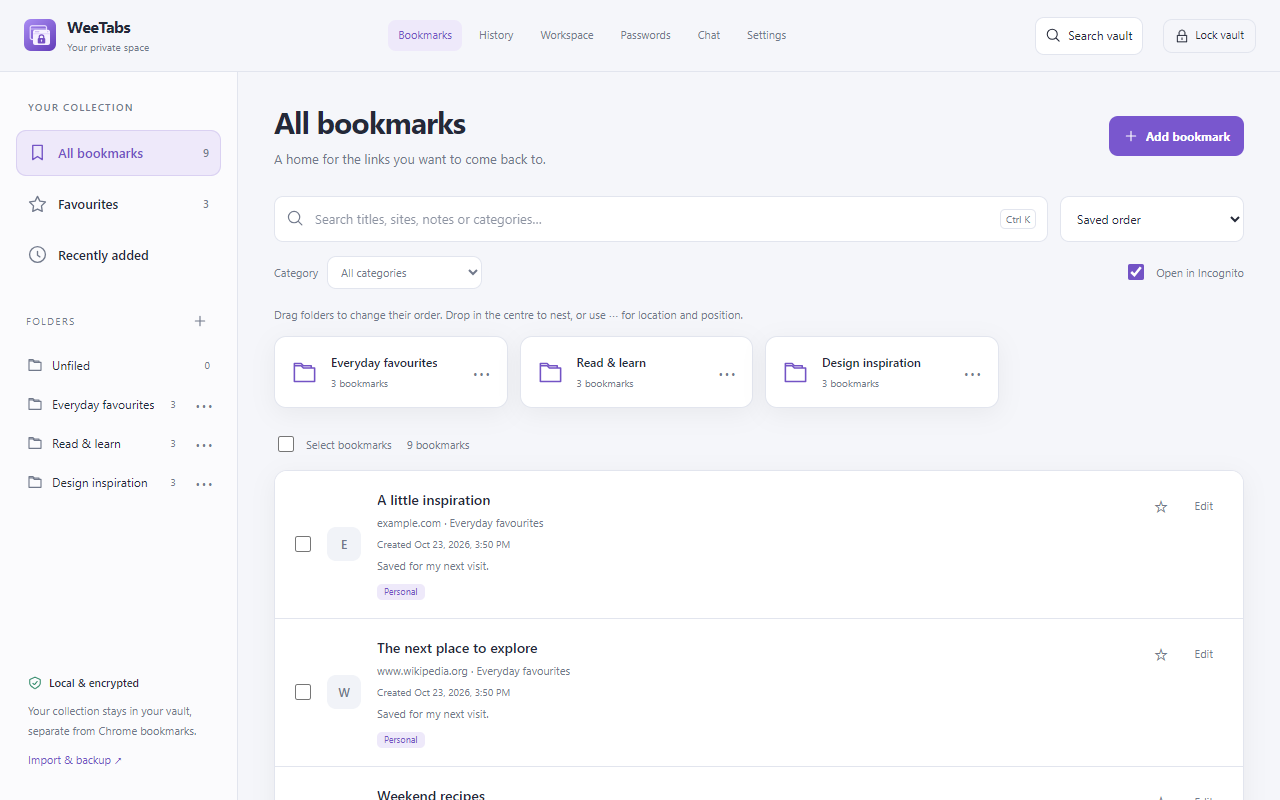
WeeTabs stores its own bookmark collection in an encrypted vault. Unlock it to browse, search, organise or open your saved links. Lock it when you finish. Bookmarks, folders and local offline backups are part of the free local tools; you do not need an account for them.
This protects the collection inside WeeTabs. It does not put a password on Chrome’s original bookmark bar, hide Chrome’s own history or lock a webpage that is already open. Keep that distinction in mind when deciding where to save a link.
Create your vault
- Open the WeeTabs side panel from the extension’s toolbar icon.
- Create and confirm a vault password you can remember. Keep a safe copy of that password separately.
- Review the normal and Incognito history recording choices during setup. Recording is separate from saving bookmarks.
- Unlock the vault whenever you want to use its saved collection.
Your vault password is not sent to our server. A forgotten vault password cannot be recovered, so an encrypted backup is useful only if you also retain the password needed to open it.
Import Chrome bookmarks without losing your folders
Use Import in the Bookmarks side panel to copy your Chrome bookmarks and folders into WeeTabs. You can then organise that private collection independently.
Importing is a copy operation: it does not remove or password protect the originals in Chrome. If a link still exists in Chrome’s ordinary bookmarks, it remains visible there. Review the copied folders before making any separate changes to your original bookmarks.
Save a tab, a window or a group of links
Choose Save tab to keep the current webpage. Use Save window when several open pages belong together, and choose a bookmark folder as the destination. New Folder creates a place for a topic or project.
Already have the links saved? Choose Select to select several bookmarks and move them together. The full bookmark library also gives you more space to move folders, create subfolders and sort by creation date. Categories and favourites offer another way to find a link without building a deep folder tree.
What happens when you lock WeeTabs?
The saved collection is hidden behind the vault’s unlock screen. Locking does not close or obscure tabs you have already opened. Chrome’s history and address-bar suggestions continue to be managed by Chrome.
If you open a saved link in Incognito, you must first enable Chrome’s Allow in Incognito permission for WeeTabs. Saving a link and recording an Incognito checkpoint are different actions; the Incognito guide explains the recording choices.
Keep a recovery copy outside your browser
Open Encrypted backup and use Local offline backup to save an encrypted file outside the browser profile. The supported bookmark, session/history, password and Notes categories are included in that file; Chat, device connections and app settings are not.
Paid Pro adds encrypted cloud backup with separate category choices. Only selected cloud categories are backed up, so review coverage before relying on a cloud copy. Removing the extension or losing the browser profile can remove local data. Keep both the backup file and its password safe.