
Allow WeeTabs in Incognito first
Chrome requires a separate permission before an extension can work in Incognito windows. In Chrome, open Extensions → Manage extensions → WeeTabs → Details, then enable Allow in Incognito.
Create your WeeTabs vault in the side panel if you have not already done so. Incognito recording and ordinary recording have separate choices. Review both during setup and in the History controls rather than assuming that opening a private window enables recording.
Choose what to record
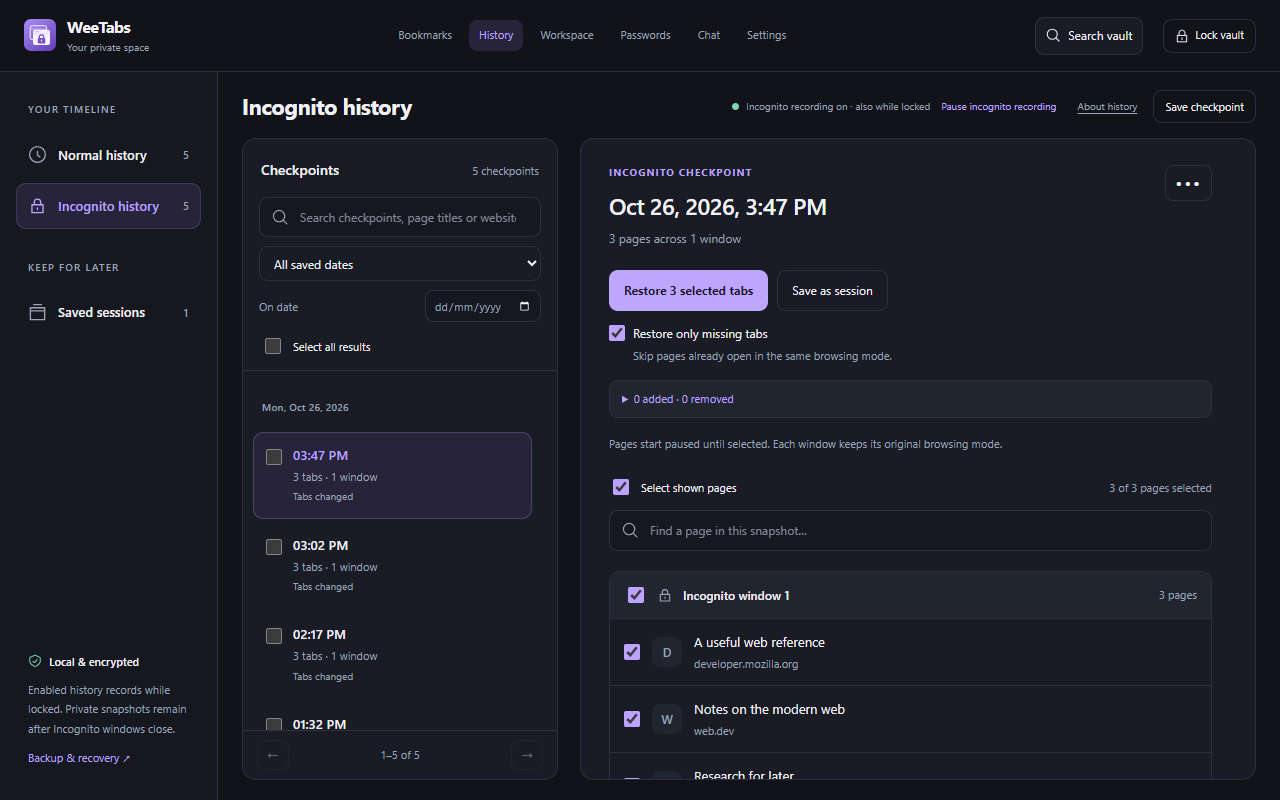
Open History → Incognito history in the side panel to review the recording status. When enabled, WeeTabs saves encrypted tab-history checkpoints, including while the vault is locked. Turn recording off when you do not want new checkpoints saved.
A checkpoint is a snapshot of supported open tabs, not a complete log of every navigation, page interaction or form entry. Normal and Incognito history remain in separate views. Opening an Incognito window does not make its saved WeeTabs checkpoints temporary.
Keep an important checkpoint as a saved session
Find a checkpoint and choose Preview & restore to inspect its pages. Use Keep snapshot when you want to keep a useful checkpoint as a named session instead of depending only on automatic history retention.
Saved sessions is inside History. Use it for a research topic or a set of pages you expect to reopen. You can also save the current window directly instead of waiting for an automatic checkpoint.
Restore the pages you actually need
Search for a page, domain or checkpoint. The full History manager adds date filters and room to preview the list. Select the relevant pages, review their browsing mode, then restore them. Private checkpoints restore into Incognito browsing.
With lazy opening enabled, restored pages start paused until selected so that every website does not load at once. Restoring a saved URL does not restore a website login, an unsent form or the exact state of a web application. Some pages may ask you to sign in again.
Understand retention and privacy boundaries
Choose a 7-, 30- or 90-day checkpoint retention setting, subject to available space. Older checkpoints can be removed by retention pruning. Saved Incognito checkpoints remain after private windows close until you delete them or pruning removes them.
WeeTabs protects its saved vault collection. It does not replace Chrome’s Incognito behavior, hide traffic from a website or network, act as a VPN, or lock open tabs. Keep an encrypted local offline backup if the saved pages matter to you.
Optional: use private password assistance
WeeTabs Pro includes Incognito Passwords, also usable in normal tabs while the main vault is unlocked. Saved-login suggestions, generation and save/update prompts work on supported HTTPS forms. Automatic assistance needs optional HTTPS-site access, and each browsing mode can be disabled independently in Settings.
You confirm filling and saving; WeeTabs never submits a login form. Some custom forms require manual handling. New vaults include a 21-day local trial of password and Notes tools with no automatic charge. Cloud backup and device sync require paid Pro.