Checkpoints, saved sessions or bookmarks?
A useful tab manager gives you more than one way to return to a page. Choose the kind of saved collection that matches how you work.
| Use | Best for | Remember |
|---|---|---|
| Tab-history checkpoints | Finding a recent set of open tabs | Recording must be enabled; retention and storage limits apply. |
| Saved sessions | Keeping a named group of tabs to reopen | Review the group and its normal or Incognito browsing mode. |
| Bookmark folders | Organising links you want to keep and edit | Separate from Chrome’s ordinary bookmarks. |
These local bookmark, history and session manager tools are free. Passwords, Notes and cloud features have separate Pro access rules.
Save a window before changing tasks
- Unlock WeeTabs and select Save window in the side panel.
- Review the windows and pages you want to keep.
- Choose whether to save a session or put the links into a bookmark folder.
- Give the saved set a useful name so you can find it later.
Saving the group does not require closing the original tabs. Keep a named session for a recurring task, or use a bookmark folder when you want to organise and move individual links.
Find yesterday’s tabs in History
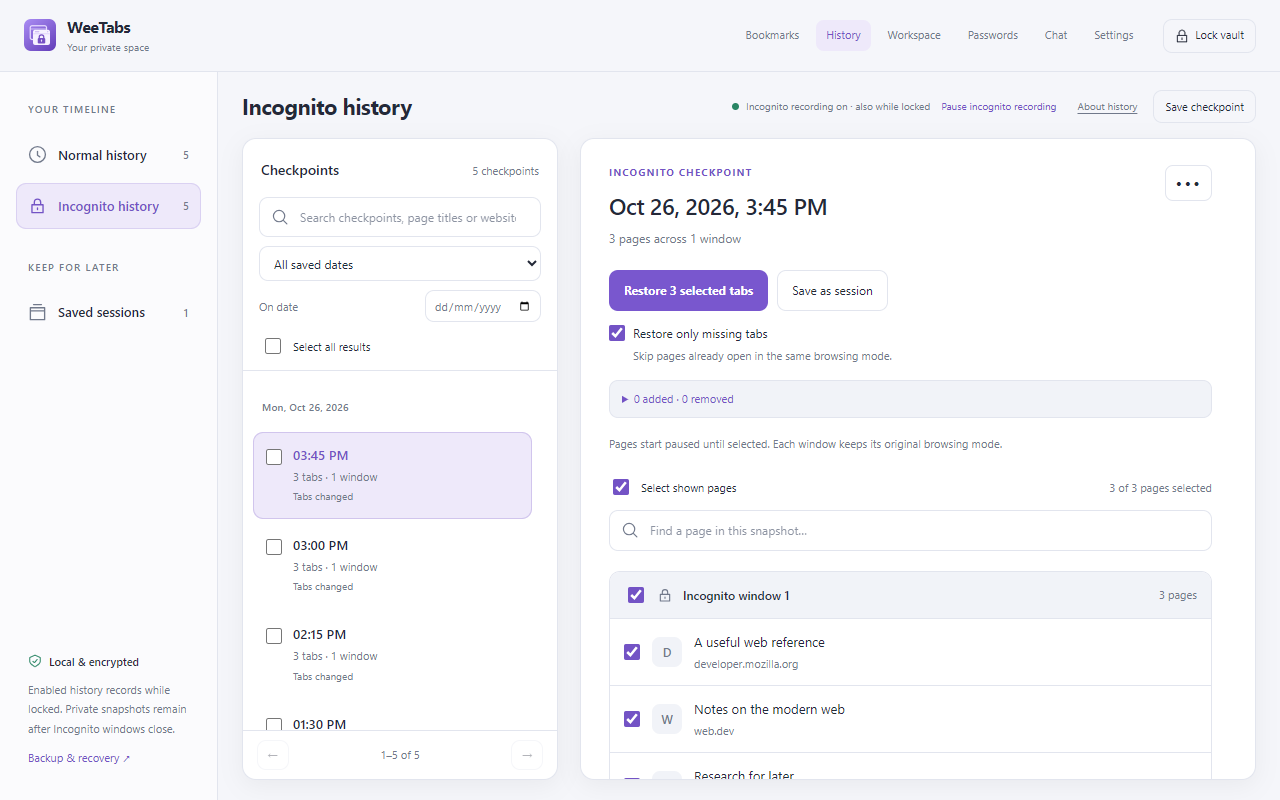
Open History, then select Normal history, Incognito history or Saved sessions. Search for a page or domain. Select Open full view for date filters and a larger preview.
Automatic history uses checkpoints of supported open tabs. It is not a record of every page you visited, and it only helps if recording was enabled before the pages were lost. The recording switches are independent, and enabled recording continues while the vault is locked.
Preview before restoring a large session
Choose Preview & restore, review the saved pages and select the ones you need. WeeTabs keeps normal and Incognito browsing modes separate. Allow the extension in Incognito before restoring private pages.
With lazy opening enabled, bulk restores start pages paused until selected. This avoids loading all websites at the same moment. Reopening a URL cannot guarantee recovery of unsaved text, a video position, a login session or a website’s in-memory state.
Use a tab suspender without losing track of your work
Use Suspend tab to pause the current page and reduce its background work. Settings also offers an optional idle timer and site exceptions for pages you want to keep running. RAM savings vary by page.
Manual suspension stops media and can lose unsaved page state. Save your work before suspending a page with an unfinished form, upload or web application. Keep an important group as a session or bookmark folder so that its links remain easy to find.
What if a checkpoint is missing?
Check the selected browsing mode, recording status, search and date filters first. Then check the retention setting: checkpoints can be pruned after 7, 30 or 90 days, subject to available space. An older backup cannot contain a session that was never saved.
If you previously created an encrypted local offline backup, you can review and restore its supported contents. Paid cloud recovery is separate: it only covers the categories selected when the backup was made. Device sync does not sync automatic history or open tabs.
Neither local nor cloud backup can recover a forgotten encryption password. Keep a usable backup outside the browser profile before uninstalling or moving devices.