Start with two separate collections
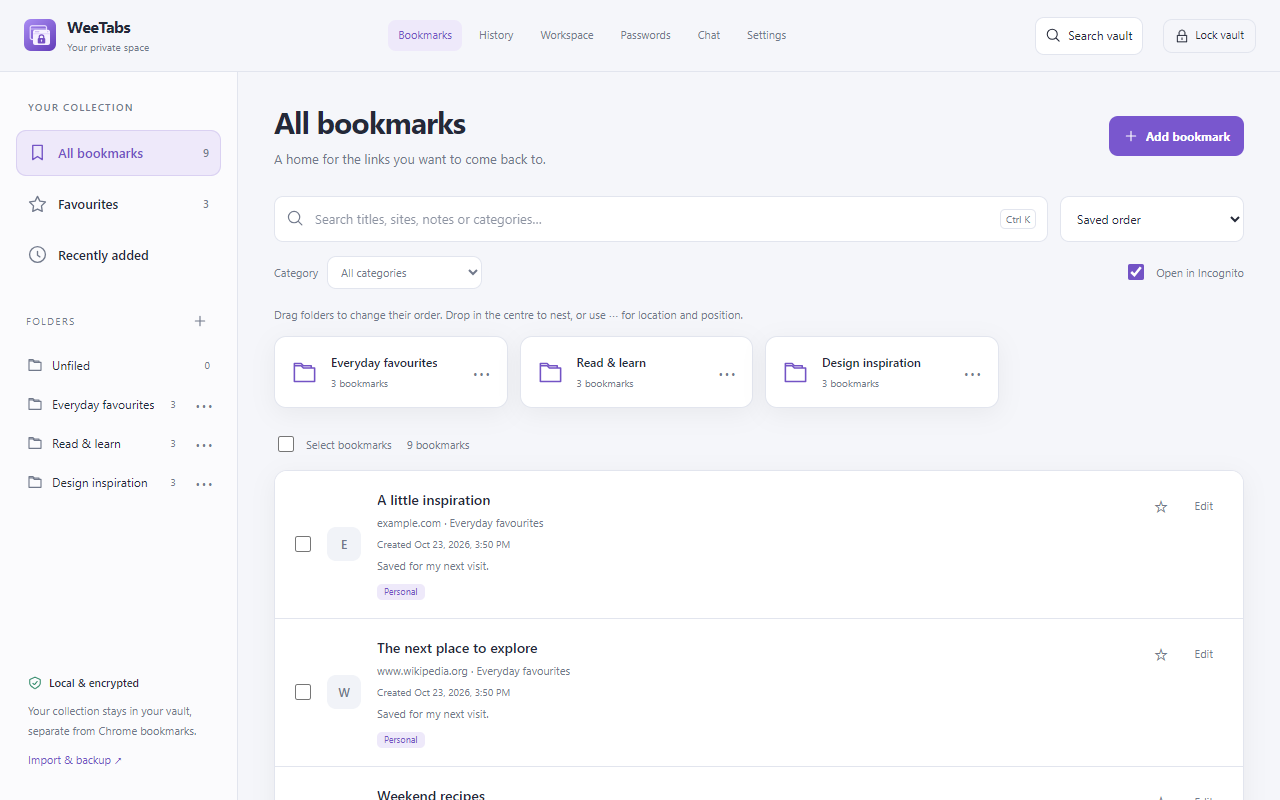
If someone opens Chrome’s bookmark bar, importing those bookmarks into WeeTabs will not suddenly hide them. Chrome’s originals and your WeeTabs vault are separate collections. WeeTabs makes an encrypted copy that you can search, organise and open after unlocking. Your ordinary bookmarks remain where Chrome put them.
Use the vault for links and named groups of tabs you want to keep behind a password. Bookmarks, local tab-history checkpoints and saved sessions are free local tools, with no account needed. A saved session is a set of page addresses and window context; it is not a copy of a website’s account session.
For example, import a research folder, check its contents inside WeeTabs, then organise that copy independently. Removing an item from one collection does not automatically remove it from the other. Decide separately whether to keep any original Chrome bookmarks; do not delete the originals until you have checked your vault and backup.
Create and unlock the vault
- Once WeeTabs is available, install it from its official Chrome Web Store listing. Until then, use the availability link on this page; there is no public preview download.
- Open the extension’s side panel. Create and confirm a vault password. Keep that password in a safe place outside this browser profile.
- Review the normal and Incognito recording choices during setup. Recording checkpoints is separate from importing bookmarks.
- Use your vault password to unlock. The correct password automatically opens the collection; the unlock button and Enter are also available.
The vault password is not sent to the WeeTabs server. There is no password-reset email that can decrypt a forgotten vault password. An encrypted backup still needs its original password.
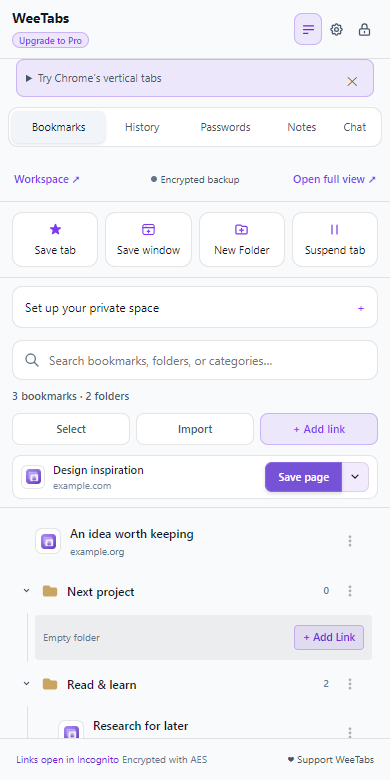
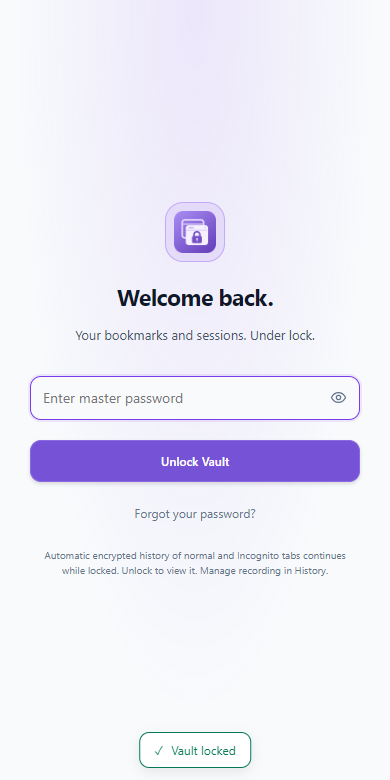
Actual WeeTabs 2.36.2 side panel with fictional example data.
Import without changing Chrome’s originals
In Bookmarks, choose Import and the Chrome bookmark import. Review the imported folders and a few saved links before relying on the result. If Chrome asks for access, grant it only when you want to run the import.
The import copies your links and folder structure into WeeTabs. It does not password-protect Chrome’s bookmark manager or remove links from Chrome’s suggestions. Copies in a synced Chrome profile, exported files and other devices are still governed by their own storage and settings. Importing bookmarks also does not import passwords; password CSV import is a different, deliberate action.
Organise links and keep useful sessions
Use New Folder to create a destination and Save tab for the current page. Save window lets you review a group and choose a bookmark folder or saved session. A bookmark folder suits links you want to rearrange individually; a named session suits a group you expect to reopen together.
Use Select to move several existing bookmarks into a folder at once. Open the full library for folder moves, subfolders, creation-date sorting and more space to review links. Categories and favourites can be simpler than adding another level of folders. Saved sessions are found under History → Saved sessions.
Lock the collection when you finish
Choose the lock icon in WeeTabs. Unlocked full-page managers and the side panel follow the shared vault lock. The saved collection disappears behind the unlock screen; the screenshots above show the difference.
Pages you already opened remain open and visible. Chrome still manages its own history, original bookmarks and address-bar suggestions. WeeTabs does not lock the whole browser, conceal downloads, protect against malicious software running on an unlocked computer or act as a VPN. Use an operating-system screen lock when you step away.
If you save private-window pages, also read the Incognito session guide: intentionally saved private records persist beyond that window.
Keep an encrypted recovery file
Open Encrypted backup, find Local offline backup and choose Save or Restore encrypted file. Save a file outside the browser profile, somewhere you can find after a device problem or reinstall. Keep its vault password separately and check that the download completed before removing anything.
This file includes the supported bookmarks, saved sessions, normal/Incognito history, passwords and Notes in that vault. Chat, device connections and app settings are not included. Paid cloud backup is a separate choice and includes only the categories selected when that backup was made; it is not automatically the same as the full local file.
Losing a browser profile or uninstalling the extension can remove local records. Keep a usable recovery file before either action. Neither local nor cloud backups can decrypt a forgotten encryption password.