
Decide whether you want a persistent record
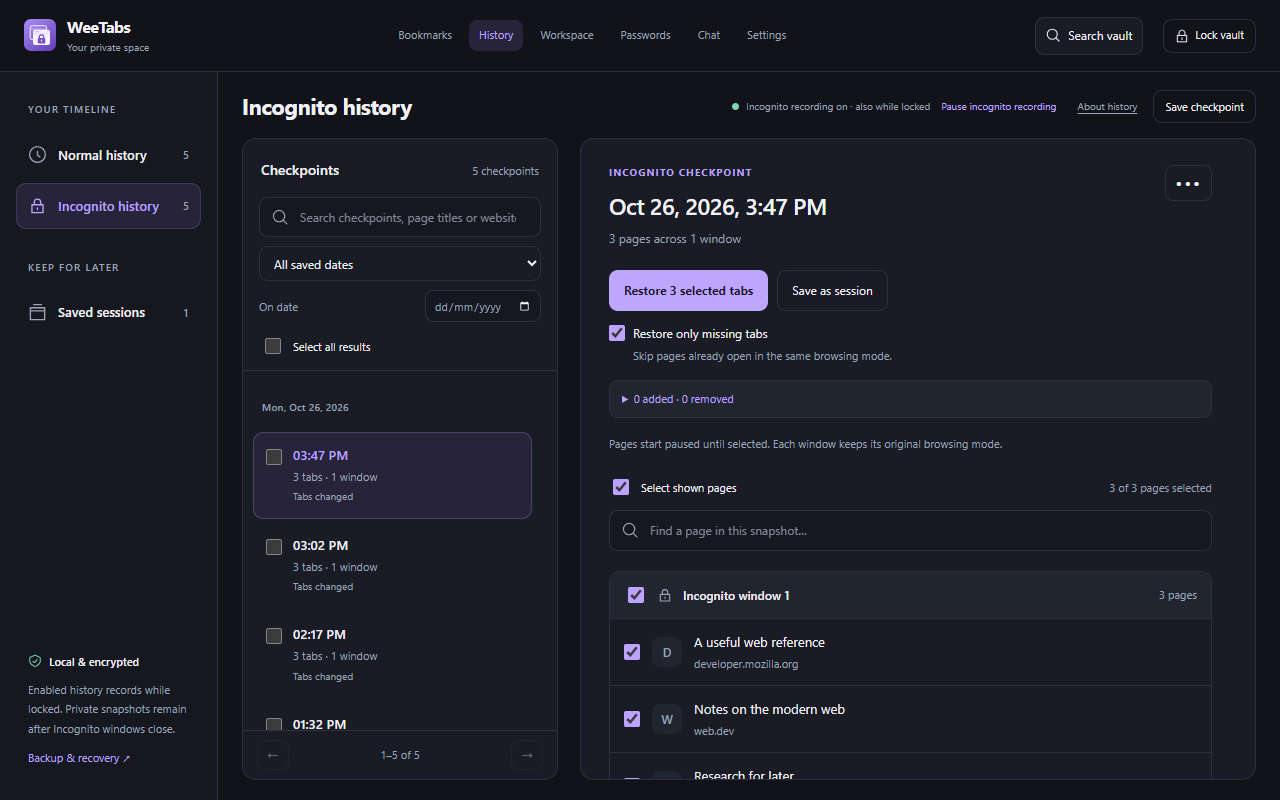
Incognito is useful when you do not want ordinary browsing history left in that Chrome session. Saving a page into an extension is a different decision. WeeTabs can retain an encrypted list of private-window pages so you can return to research, but that list deliberately outlives the window.
A checkpoint captures supported open tabs at a point in time. It is not a recording of every navigation, form entry or interaction. A named saved session keeps a useful set of links apart from the automatic history timeline. Both are records you should choose to keep, rather than assume Incognito will erase.
If a page must not be retained, keep Incognito recording off and do not save its link into bookmarks, Notes or a session. Also consider previous exports, backup files and any selected cloud-history category: those are independent copies.
Enable Chrome’s permission, then choose recording
- Open Extensions → Manage extensions in Chrome.
- Find WeeTabs, choose Details and turn on Allow in Incognito.
- Open WeeTabs and review History → Incognito history. Choose whether to enable recording; the permission alone is not your recording preference.
- Review Normal history separately. Its switch is independent.
Normal and Incognito history are both selected by default during setup, and you must confirm those choices. Chrome’s Allow in Incognito permission is still required. When recording is enabled, checkpoints continue to be saved while the vault is locked. Locking hides saved records from the interface; it does not turn recording off. Use the History control or Settings to stop new recording.
Find a checkpoint or keep a named session
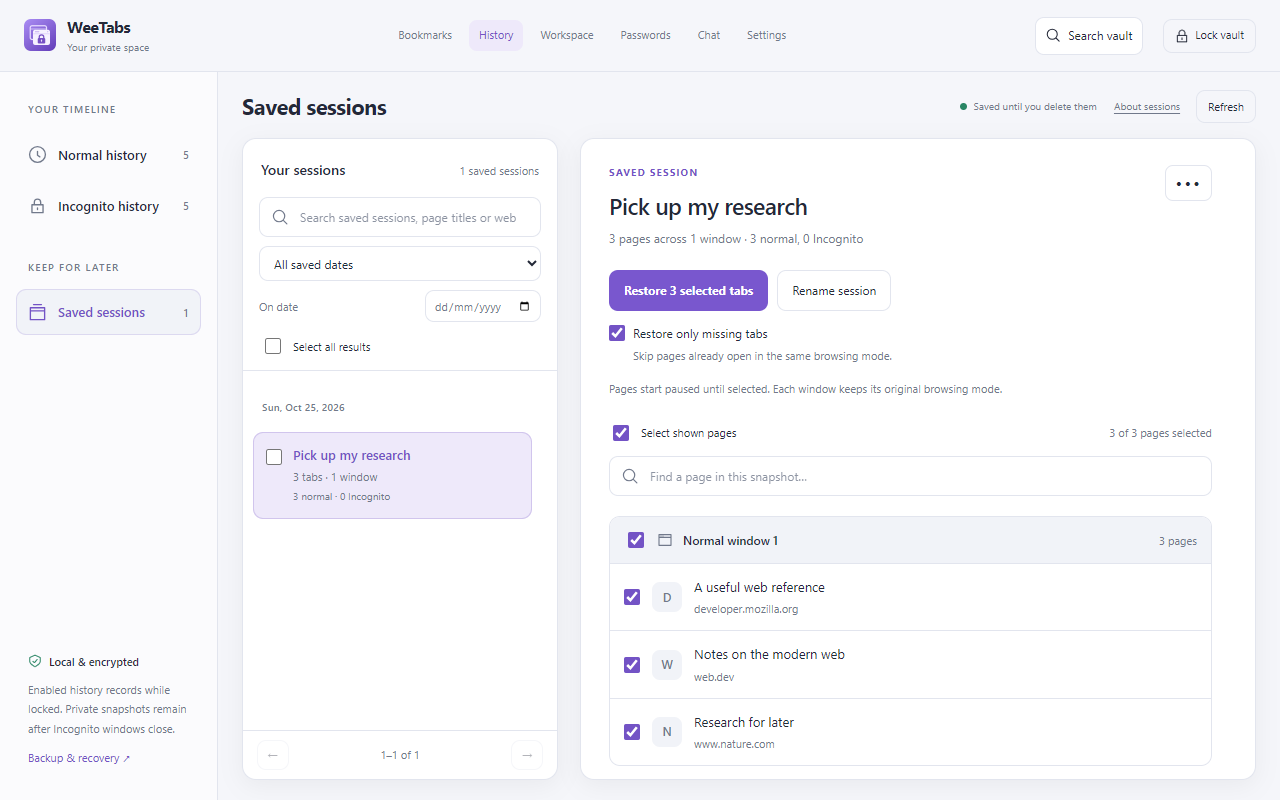
In History, switch between Normal history, Incognito history and Saved sessions. Search for a page title or domain. Open the full view when you need date filters and room to inspect a longer tab list.
Choose Preview & restore to inspect a checkpoint. Use Keep snapshot for a checkpoint worth keeping as a named session. Alternatively, use Save window and select the session destination after reviewing the pages. Saving a group does not require closing its original tabs.
Check that the item is private before opening it. WeeTabs preserves the saved normal/Incognito browsing mode, and Chrome must still allow the extension in Incognito.
Restore selected pages without loading them all
Open the saved group, select the pages you need and review the restore destination. Keep normal pages and private pages in their intended modes. With Load bulk tabs only when selected enabled in Settings, bulk restores begin as lightweight paused pages. A site loads when you select its tab, instead of all restored sites starting together.
Restoring URLs does not guarantee recovery of an unsent form, scroll position, media position or a website’s in-memory workspace. A missing checkpoint cannot be reconstructed if recording was off. If the view looks empty, check the mode, search/date filters, recording status and retention before assuming a restore failed.
A tab session is not a website login session
A saved tab session contains page addresses and related window information. A website login session depends on authentication cookies, tokens and the site’s own server state. WeeTabs’ saved sessions do not back up or restore those cookies. Reopening a login-required page may send you to a sign-in screen.
Pro password assistance can suggest a saved login on supported HTTPS forms while the main vault is unlocked. It also works in normal tabs, with independent browsing-mode settings. Automatic help needs optional HTTPS-site access. You confirm filling and saving; WeeTabs never submits the form, and some custom forms need manual handling.
Password assistance does not restore authentication cookies, bypass sign-in or replace a site’s two-factor authentication. The 21-day local Passwords/Workspace trial is separate from paid cloud backup and device sync.
Delete records you no longer need
Delete unwanted checkpoints or saved sessions from the appropriate History view. Turning recording off stops future captures; it does not delete past records. Named sessions should be reviewed separately from automatic checkpoints.
Automatic history retention offers 7, 30 or 90 days, subject to storage limits. Older checkpoints are pruned and actual coverage may be shorter. A named session is useful when you want to keep a specific set rather than depend on timeline retention. Downloaded backups and prior cloud recovery versions can contain records already deleted locally.
WeeTabs encrypts its own saved collection. It does not hide traffic from websites or networks, replace Chrome’s Incognito guarantees, close open tabs when locked or provide network anonymity. See the privacy policy before deciding what to retain.