
Keep the address, release the running page
A tab can be useful even when its website does not need to stay loaded. WeeTabs separates the tab’s address from the running page. Manual suspension replaces a supported website with a local paused placeholder; opening a large saved group can also start with placeholders. The original address is used to load the website when you return.
This is different from saving a session and closing its tabs. A saved session keeps a group you can reopen later, while a paused tab remains in the tab strip. If your goal is a clean tab bar, save the useful group first, check it, then close its original tabs yourself.
Do not treat a placeholder as encrypted vault storage. Open tab titles and addresses can still be visible in the browser. Locking WeeTabs does not lock open tabs or their paused placeholders.
Suspend one page or background tabs
- Save unfinished work in the website before pausing it.
- In the side panel, use Suspend tab to pause the current supported page.
- For a broader cleanup, open Settings and choose Suspend all tabs.
- The bulk action keeps the active tab in each window running, including Incognito windows. Review any skipped or failed pages rather than assuming everything was paused.
The explicit manual action can stop background audio or video. Keep a call, upload, editor or other active job out of a manual bulk cleanup. Browser settings pages and unsupported addresses may not be eligible.
Use an idle timer only when it fits
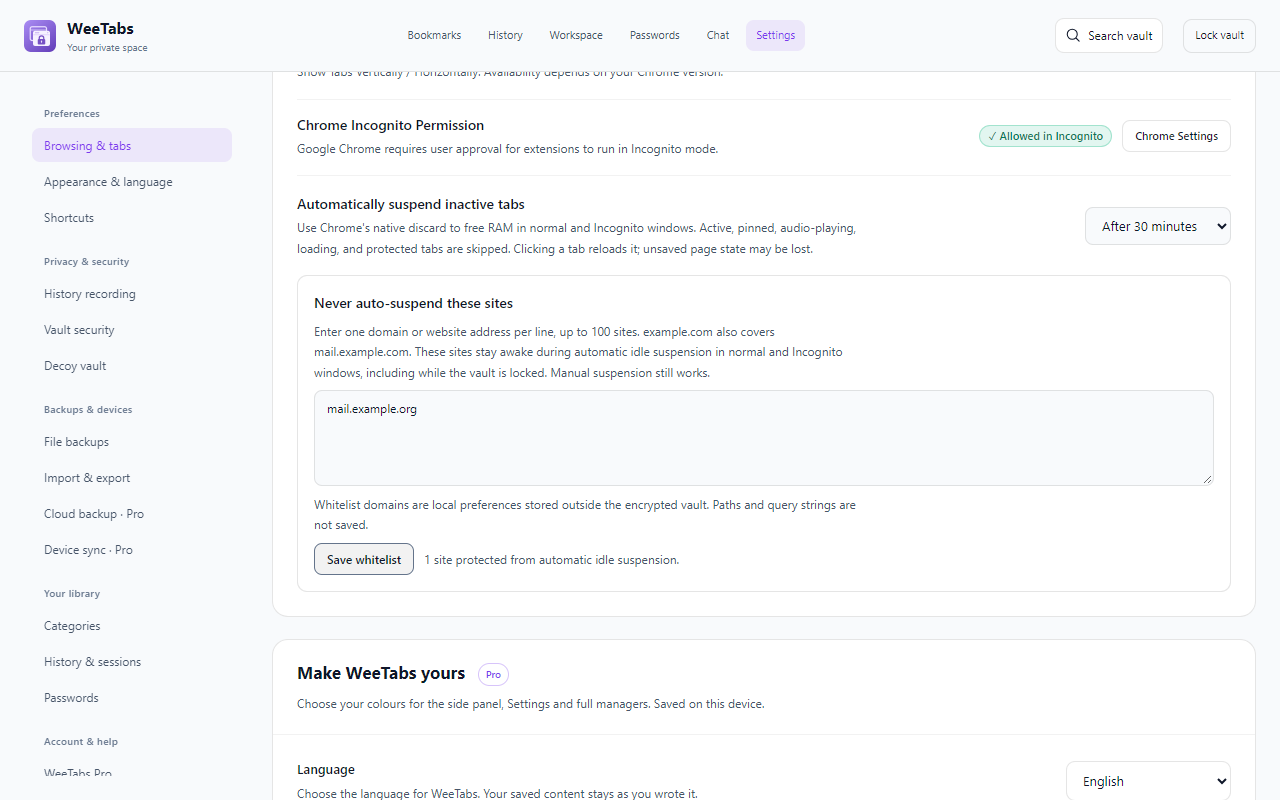
Settings includes Automatically suspend inactive tabs. It starts off as manual only; optional intervals include 5, 15, 30, 60 and 120 minutes. Try a longer interval first if you frequently switch between reference pages.
Automatic idle suspension uses Chrome’s native discard rather than the manual replacement flow. It skips active, pinned, audio-playing, loading and protected tabs. Clicking a discarded tab reloads it. The timer is not a promise that every inactive site will be discarded at an exact moment; Chrome eligibility and browser activity matter.
Use your own workload to judge the result. Fewer fully loaded pages can help, but page design, videos, extensions and Chrome’s other processes determine actual memory use. There is no fixed percentage or guaranteed amount of RAM saved.
Keep important sites awake
Under Never auto-suspend these sites, enter one domain or website address per line, then save. For example, mail.example.org can be a useful exception for a web app you expect to stay ready. A parent domain also covers its subdomains.
These exceptions apply to automatic idle suspension, in normal and Incognito windows, including while the vault is locked. They do not prevent you from explicitly suspending a tab manually. The exception list is a local preference outside the encrypted vault; use the main domain if you do not want to store a sensitive full address there.
Restore a large session as paused pages
Enable Load bulk tabs only when selected in Settings. Preview the saved session and restore just the pages you need. The resulting placeholders avoid starting every website and video together. Selecting a tab loads its site.
Start with tabs suspended is a separate startup choice. Chrome can begin loading a restored page before an extension runs, so this option does not guarantee that no site starts during browser launch. Check the startup controls and prepare important tabs before closing Chrome.
Manual suspension and placeholder replacement may discard unsaved form data and the tab’s Back/Forward history. Reloaded sites can ask you to sign in again. Save work, confirm uploads completed and use a saved session or bookmark folder for recovery of addresses.
Chrome already has Memory Saver
You may only need Chrome’s built-in option. In Chrome, open Settings → Performance → Memory Saver. Google explains that it deactivates unused tabs and reloads them when you return. Its Always keep these sites active list lets you exclude important sites.
WeeTabs adds explicit suspension controls, session lists and paused bulk restore alongside its encrypted saved collection. Chrome’s native option is a reasonable first choice if you mainly want automatic memory management. Neither approach guarantees restoration of unsaved application state.
Source checked : Google Chrome Help: personalise Chrome performance. Review that help page for current Chrome settings and exceptions.