
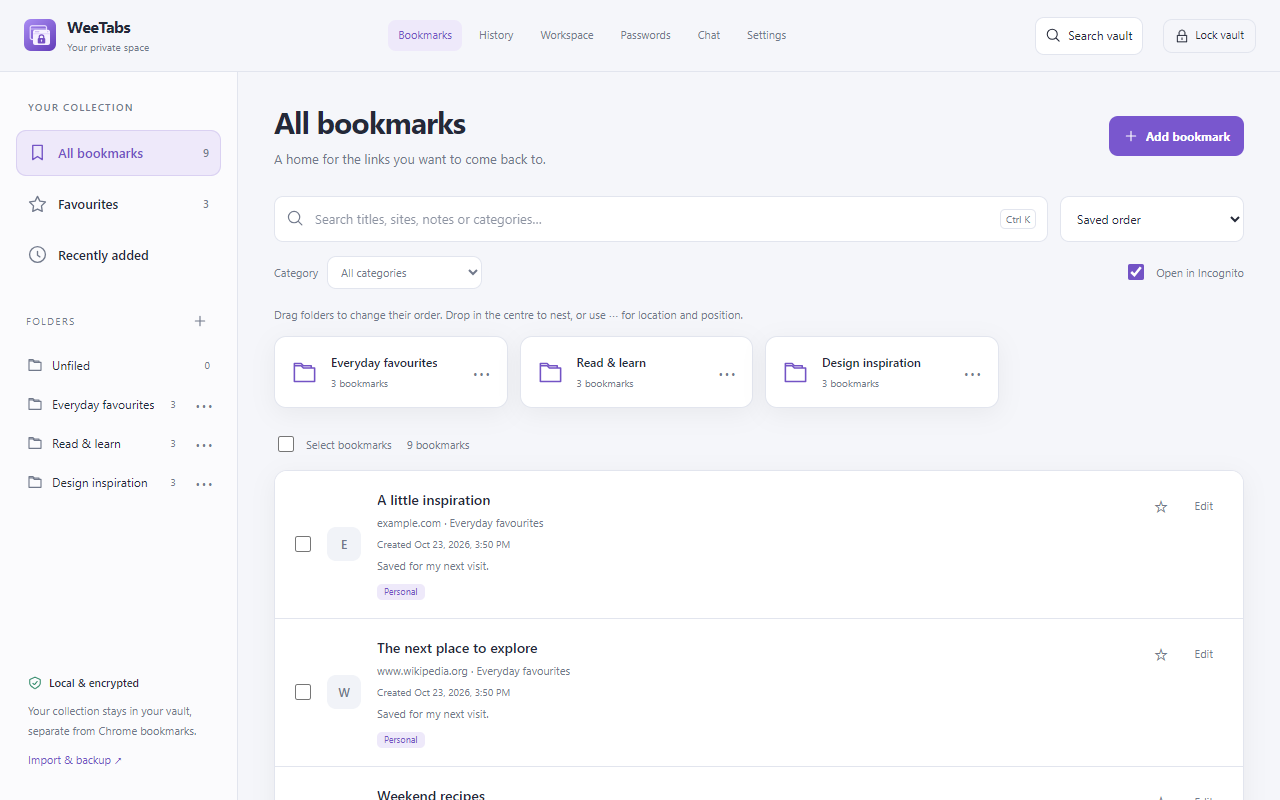
First decide what you want the password to protect
“Password protect Google Chrome” can mean several different things. You may want to stop someone using an unattended computer, separate your browsing from another person’s, protect a Google Account, or keep a set of saved links private. Those require different controls.
| Your goal | Use this control | Remember |
|---|---|---|
| Stop access while you step away | Operating-system screen lock and sign-in protection | Locks the device, including an open Chrome window. |
| Separate people using a shared computer | Separate operating-system user accounts | A Chrome profile alone is not a substitute for device access control. |
| Protect selected saved browsing | A separate WeeTabs vault password | Applies to WeeTabs’ collection, not Chrome’s original data. |
| Protect a website or Google Account | That account’s sign-in and security settings | A vault password does not sign you out of websites. |
Start with the broadest access problem. A protected bookmark collection cannot make an unattended, unlocked computer safe to share.
Lock the computer when you step away
On Windows, press Windows + L. Microsoft explains that this locks the device while applications remain open, with access controlled by your configured sign-in method. On a Mac, Control + Command + Q locks the screen. These controls protect the workspace around Chrome rather than just one extension.
Use an appropriate device sign-in method and give other people their own operating-system accounts where needed. Closing Chrome, minimising a window or changing the browser theme is not the same action as locking the device.
Official instructions checked 27 October 2026: Microsoft Support: user account access in Windows and Apple Support: Mac keyboard shortcuts. For a managed work computer, follow your organisation’s device policy.
Use profiles for organisation, not as a password barrier
Chrome profiles keep different sets of bookmarks, history and settings organised. Google’s own help warns that someone with access to the device can switch to another Chrome profile and see its information. A different profile name or avatar should therefore not be treated as a private locked area. Google Chrome Help: manage Chrome with multiple profiles
Likewise, your Google Account password protects access to that account. It should not be confused with a separate lock on a Chrome window already available inside an unlocked device session. Review website sign-ins and device access separately.
Incognito serves a different purpose again: it limits the local information Chrome retains after the private session ends. It does not add a password prompt to the whole browser or hide a website currently visible on screen.
Put selected bookmarks and tab history in a vault
If your goal is protecting saved browsing rather than the entire application, WeeTabs provides a separate encrypted collection. Create a vault password, review the history recording choices and unlock it when you want to use that collection.
Normal and Incognito history are both selected by default during setup, with confirmation required. Chrome must separately allow the extension in Incognito before private tabs can be recorded. Enabled history recording continues while the vault is locked. Keep or change those choices to match what you actually want retained.
Use Import to copy Chrome bookmarks, Save tab for an individual page, or Save window for a folder or named session. Importing copies links; it does not remove or password-protect the originals in Chrome. Follow the bookmark and session vault guide for that workflow.
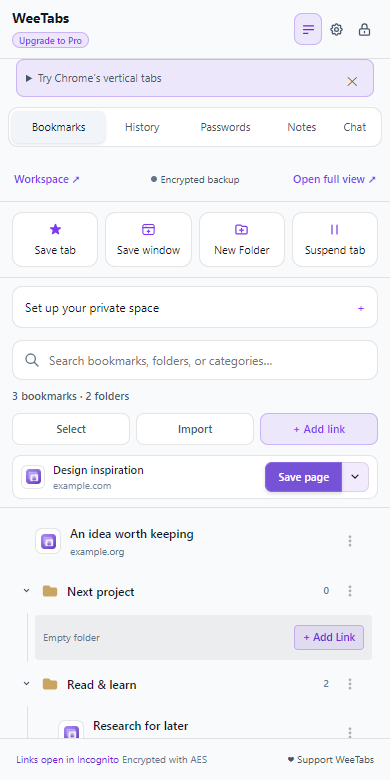
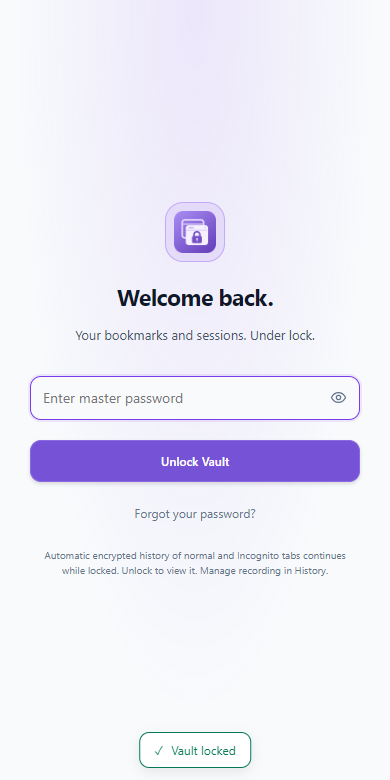
Actual WeeTabs 2.36.2 side panel with fictional example data.
Understand what the WeeTabs lock leaves visible
Choose the lock icon to hide the saved collection behind the vault unlock screen. The side panel and open full-page managers follow the shared vault lock. Set an auto-lock interval appropriate to how you use the extension.
Chrome’s original bookmarks, history and address-bar suggestions remain browser-managed. Open pages remain open. A saved password in WeeTabs does not lock a website account that is already signed in, and a paused tab is still a browser tab rather than hidden vault content.
WeeTabs is not a whole-browser app locker, a VPN, protection against malicious software controlling an unlocked device, or a way to bypass workplace controls. Combine a private saved collection with normal device security, rather than asking one password to serve every purpose.
Keep access and recovery under your control
Your WeeTabs vault password is not sent to its server. Keep a copy of the password safely and make a Local offline backup using Save or Restore encrypted file. Store the encrypted file outside the browser profile before reinstalling the extension or moving devices.
A forgotten encryption password cannot be recovered by email. A Pro licence restores feature access, not the secret needed to decrypt your records. Paid cloud recovery has its own selected categories, and device sync is separate from automatic tab history.
Bookmarks, local history, sessions, tab suspension and local offline backup are free local tools. Pro adds tools such as private Notes, password assistance and selected cloud services. The core decision remains the same: protect device access first, then password-protect the saved collection you want to keep in WeeTabs.