
Yes, WeeTabs can restore the private tabs it saved
WeeTabs saves its own encrypted Incognito tab history. If it recorded your pages before you closed the window, you can unlock the vault, find the checkpoint and reopen those pages. The saved record remains available after the original private windows close.
Normal and Incognito history are both selected by default in WeeTabs setup. You must confirm those choices, and Chrome’s Allow in Incognito permission must be enabled before private tabs can be captured. With those defaults confirmed and permission granted, recording is automatic, including while the vault is locked. Default retention is 30 days, subject to storage limits.
This is different from asking Chrome for a lost private browsing log. Google explains that Chrome does not retain a record of visited sites after an Incognito session ends. WeeTabs’ deliberately saved encrypted checkpoints are a separate record. Google Chrome Help: browse in Incognito mode
Restore a saved Incognito checkpoint
- Open WeeTabs in the Chrome profile where you saved the history and unlock your main vault.
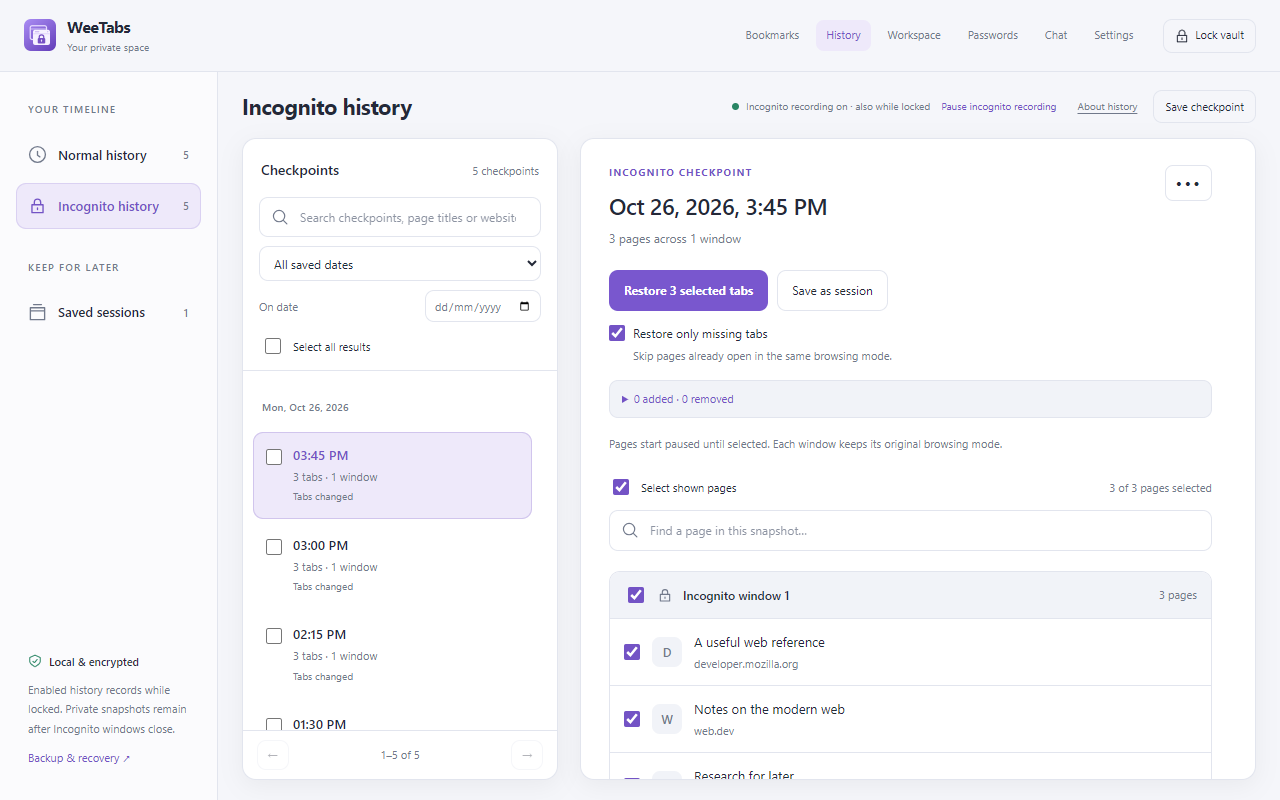
- Choose History → Incognito history in the side panel.
- Search for a page title, domain or checkpoint. Choose Open full view when you need date filters or a longer preview.
- Select Preview & restore on the checkpoint that matches your research.
- Review the saved pages and select only the ones you want. Confirm that Chrome still permits WeeTabs in Incognito, then restore.
The restored pages use their saved private browsing mode. When Load bulk tabs only when selected is enabled, a bulk restore starts as paused pages and websites load as you select their tabs. You do not have to load an entire research session just to retrieve one page.
A checkpoint is a snapshot of supported open tabs, not a record of every page visited between captures. The version you need might be an earlier checkpoint rather than the most recent one.
Also check named sessions and bookmarks
If the automatic timeline no longer has the group, check History → Saved sessions. You may have used Keep snapshot on an earlier checkpoint or saved the window directly. Named sessions are reviewed separately from automatic history retention.
Also search your WeeTabs bookmark folders and the linked pages in any relevant Notes. A page address you saved explicitly may still be useful even when the exact checkpoint is unavailable. These are separate saved items, so deleting a checkpoint does not mean every deliberately saved link was deleted.
Before closing a window you want to revisit, save a named session and verify its contents. The Incognito session guide explains the recording choices and how to save future research deliberately.
If the Incognito timeline is empty
Check the current Chrome profile first. A different profile has its own extension storage. Next, clear search/date filters, choose Incognito rather than Normal history and verify that you unlocked the intended vault. Do not erase the vault or reinstall the extension as a troubleshooting shortcut; doing so can remove the local records you are trying to find.
Then review recording and permission. If Incognito recording was turned off, its missing activity was not captured. Enabling recording now only helps with future checkpoints. The same applies if Chrome had not allowed the extension in private windows.
Finally, check retention. WeeTabs offers 7-, 30- and 90-day history settings, with 30 days as the default. Available storage and pruning can shorten actual coverage. Increasing retention today cannot recreate a checkpoint already pruned.
Recover from a backup that contains the record
If you created a local offline encrypted backup before the history disappeared, use WeeTabs’ Save or Restore encrypted file workflow. Retain the original encryption password and review the supported contents before importing. A backup cannot contain a checkpoint recorded after that file was created.
Paid cloud recovery is another option only if Incognito history was selected when the relevant backup ran. Do not assume every cloud version contains every category. Review its saved coverage and available recovery point. Device sync does not sync automatic history or open tabs.
Chat history is separate from these vault backups. Neither a licence recovery email nor a cloud subscription can decrypt a forgotten vault or backup password. Keep the original file unchanged while investigating recovery.
Know what restoration brings back
Restoration reopens page addresses and supported tab/window context. It does not restore website authentication cookies, an unsent form, a video’s exact position or the full state of a web app. WeeTabs password help may assist with a supported sign-in form, but it does not bypass login or restore cookies.
If WeeTabs was not installed, recording was disabled, or the record was never saved, it cannot reconstruct that past activity retroactively. Conversely, when recording was active, closing Incognito windows does not erase WeeTabs’ saved checkpoints. Turn recording off and delete saved records you no longer want; older backup copies may still retain them.
For future sessions, keep the default recording choices only if you want persistent private records, check the Incognito permission, keep important named sessions and make a usable backup. WeeTabs encrypts its saved collection; it does not make browsing anonymous or hide activity from websites or networks.