Start with the problem you want to solve
A backup helps you recover saved work after a mistake or device problem. Sync helps keep selected categories aligned between your computers. They overlap in convenience, but a sync service is not a substitute for an independent recovery copy: it can carry supported edits and deletions to another device.
| Choice | Best for | Coverage and access |
|---|---|---|
| Local offline backup | A file you keep independently | Supported bookmarks, saved sessions, normal/Incognito history, passwords and Notes. Free. |
| Cloud backup | Recovering selected saved categories and versions | Only categories included in that backup. New backups require paid Pro. |
| Device sync | Selected work on personal computers | Bookmarks, saved sessions, passwords and Notes when selected. No automatic history or open tabs. Paid Pro. |
For example, use a local file as an independent recovery copy and sync selected bookmarks between home and work. Add cloud recovery if you want retained server-side versions of chosen categories. Buying Pro does not make every category upload automatically.
Keep a local encrypted file outside the profile
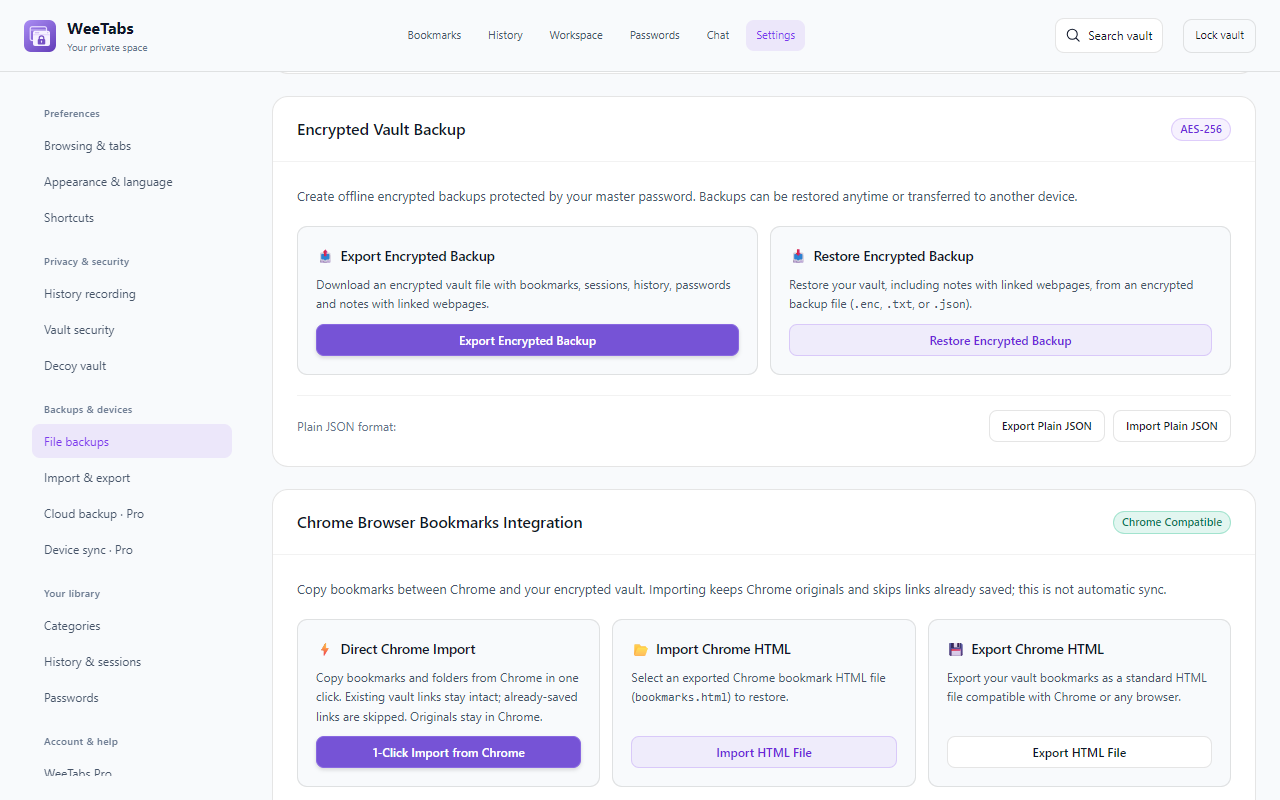
Open Encrypted backup → Local offline backup → Save or Restore encrypted file. In File backups, choose Export Encrypted Backup. Check that the download completed and place the file somewhere outside the Chrome profile, ideally on storage that will remain available if this computer fails.
The file covers the supported saved vault categories, including Notes and passwords. Your cloud-category choices do not limit this file. Chat, device connections and app settings are not included. A file copied to the same failing disk is less useful than a separate recovery location.
Keep the vault password used for that file separately. Changing a current vault password does not rewrite old exported files; use the password that protected the export. Do not delete an old usable copy until you have checked its replacement.
Check a file with a small, non-destructive restore
- First export the current vault so you have a copy of its present state.
- For a practice run, use a separate test Chrome profile with a small fictional vault and a known password. Export it, then open Restore Encrypted Backup.
- Select the file and enter the password used when it was exported. Leave Merge with existing selected for the practice run.
- Restore, reopen a known bookmark and Note, and check the saved session or other categories you included.
We checked this round trip using an isolated example vault. It verifies that the example file can be read; you still need to check your own file and password. Merge keeps existing data and adds copies, so repeated imports can create duplicates. Replace included contents replaces covered categories and should be used only after reviewing what you intend to replace.
Select cloud categories and check saved coverage
Choose Cloud backup in Settings, review the category choices and use Back up now when you want a new copy. The status distinguishes the next backup’s selection from the categories actually included in an earlier saved version. Selecting a category today does not add it retrospectively to yesterday’s backup.
Notes backup starts off. Passwords and Notes need their own deliberate choices. With automatic backup enabled, eligible changed data is backed up at most once per hour while unlocked; history recorded while locked stays local until a later eligible backup. Cloud coverage depends on actual backup times, size limits and retained recovery points.
To recover, choose a version, inspect its available categories and select the copies you need. Retained eligible backups may still be recovered after Pro expiry; that is not a promise of indefinite storage. A backup encrypted with a different vault password needs that original password.
Use sync for selected work across computers
Configure Device sync separately, choose categories and save those choices. Notes sync also starts off. Automatic history and the live open-tab list do not sync; a saved session is a stored group of page addresses, not a remote browser window.
Use Sync now / review conflicts when a change needs attention. Conflicting categories can pause for review while other completed categories have already synced. Allow an offline computer to reconnect and catch up after unlocking rather than assuming its old local view is the newest copy.
Sync does not transfer website cookies or keep you signed into accounts. It also does not provide a recovery mechanism for Chat identity keys. Keep an independent backup before major library changes, device replacement or a browser-profile reset.
Check these things before resetting or uninstalling
Make sure you can locate an encrypted file, know its password and identify the categories present in any cloud version you plan to use. Do not assume a “successful” bookmark-only backup includes Notes or passwords. Review the saved coverage, not just the next-backup switches.
The 21-day trial covers local Passwords and Workspace without an automatic charge. Cloud backup and device sync require paid Pro. Free local tools and local offline export remain available; existing passwords and notes stay readable, exportable and deletable while unlocked after expiry.
Resetting a vault or removing a browser profile can erase local data. Recovery depends on copies that really exist and can be decrypted. For the distinction between saved private records and Chrome’s own history, read restoring Incognito history.