
Enable the browser permission and unlock
Incognito separates a browsing session from ordinary Chrome history, but it does not make every login anonymous. A website still recognises the account you choose to sign into. WeeTabs password help is a way to use selected vault logins in that session, not a way to bypass sign-in or account security.
- In Chrome’s extension Details for WeeTabs, enable Allow in Incognito.
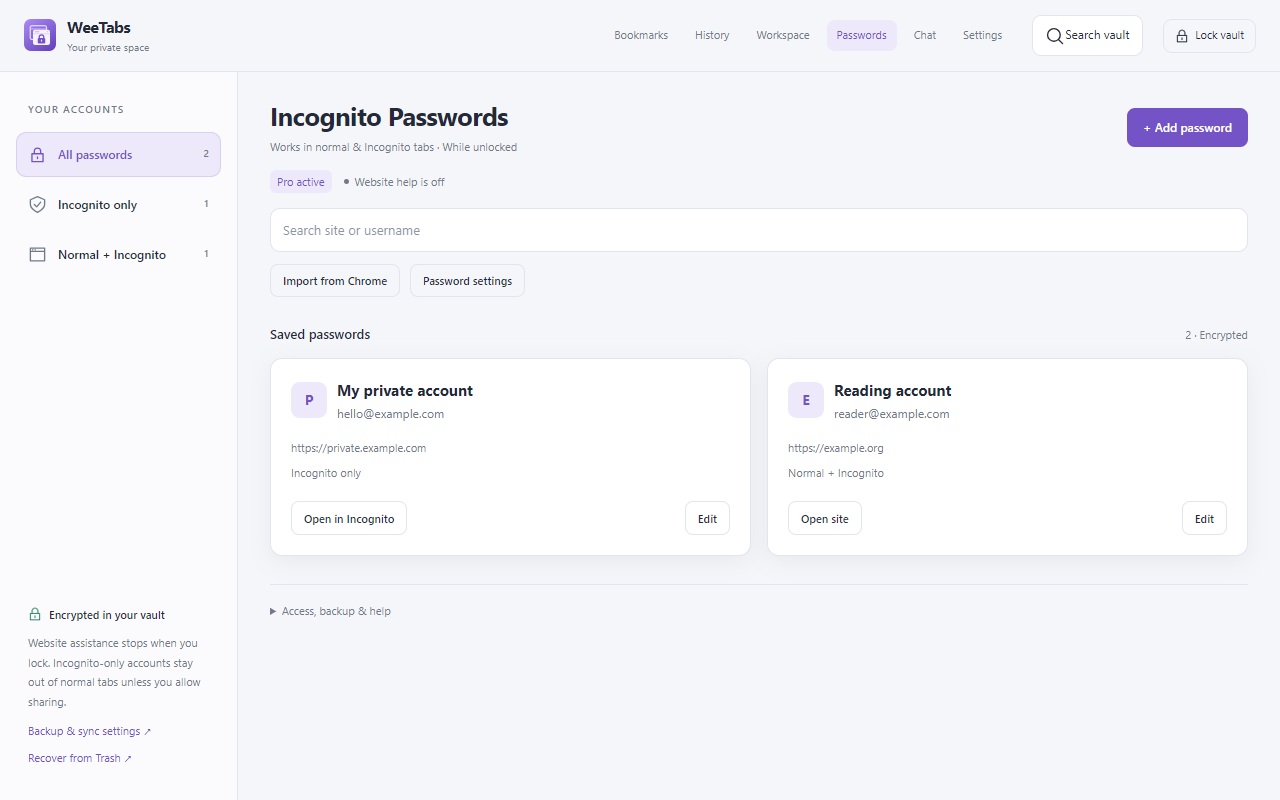
- Open and unlock the main WeeTabs vault. Password assistance is unavailable while it is locked.
- Review the password-help settings for normal and Incognito tabs. Both are enabled by default; each mode can be disabled separately.
- Grant optional HTTPS-site access if you want automatic help on supported forms.
Password tools require Pro or the 21-day local trial. The trial has no automatic charge and does not include cloud backup or device sync. An expired subscription leaves existing passwords readable, exportable and deletable while unlocked, but editing and assistance require Pro.
Choose a saved account on a supported form
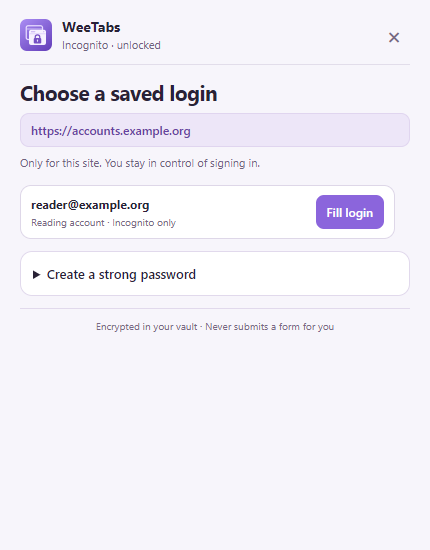
Open the intended website over HTTPS and check its full address. Focus the username, email or password field. On supported forms, WeeTabs can offer its password-help control. Open it to see matching saved accounts and select the one you intend to use.
Confirm the account and filling action. WeeTabs fills the supported fields; you still decide when to submit the website’s form. Check the result before pressing the site’s sign-in button, particularly when several accounts use the same domain. HTTPS protects a connection but does not prove a website itself is trustworthy.
A saved login’s browsing scope also matters. Incognito-only accounts stay out of normal-tab suggestions by default. If a login appears missing, check its website address and scope in the password library rather than creating several nearly identical entries.
Generate only when you need a new password
If the site already has saved accounts, the strong-password section starts collapsed so those accounts remain easy to reach. Expand it when creating another account or changing a password. When no saved account matches, generation is easier to discover.
Open the generator to get a ready suggestion. Keep the generated value masked unless you need to inspect it, adjust available options if necessary and use the offered action to fill it. The generator does not register an account or complete the website’s password-change process for you.
After completing the website action, review any WeeTabs save or update prompt. Choose the intended account and browsing scope before saving. A generated password is useful only if the website accepted it and you retained the correct value; verify the result before discarding an older working login.
Import Chrome passwords deliberately
WeeTabs cannot silently read Google Password Manager. Export the passwords you intend to move as a Chrome password CSV, then choose that file in WeeTabs and review the accounts to import. Imported Chrome accounts default to normal and Incognito scope; the assistance settings still control whether help runs in each mode.
Chrome documents password export in Google Password Manager’s Settings. The resulting CSV is readable, so remove it after checking the import and avoid leaving additional copies in shared folders or downloads. See Google’s password import/export help for its current export steps and file precautions.
Importing passwords does not import passkeys, two-factor authentication secrets or website cookies. It also does not remove the original logins from Chrome. Decide separately which password manager you want to maintain to avoid updating one copy and forgetting the other.
If assistance does not appear
Check that you are on HTTPS, the main vault is unlocked, the relevant browsing mode is enabled and optional site access has been granted. Incognito also requires Chrome’s separate extension permission. Check that the saved login belongs to the website you are using.
Some custom forms, embedded sign-in flows and unusual field layouts need manual handling. Use the password library when necessary and verify the destination before copying a credential. Do not expect a helper to bypass a CAPTCHA, second factor, organisation policy or the website’s own restrictions.
Check whether another password manager is offering controls in the same field. Keep your account selection deliberate. We do not promise that every website form will behave identically or that a saved login guarantees successful authentication.
Keep password storage and browsing recovery distinct
The vault password is not sent to the WeeTabs server. Locking the vault ends access to saved credentials through assistance, but it does not sign you out of websites already open. Use the website’s sign-out control when you need to end its account session.
A local offline backup includes supported saved passwords; cloud backup and sync include them only when selected. Keep the file and its encryption password separately. A forgotten vault password cannot be recovered by the service.
Restoring an Incognito saved session reopens page addresses. Password help can then assist with a fresh sign-in, but it does not recreate the private window’s previous cookies or authentication state.