Choose a folder or a session
A window often starts as one task and ends as a mixture of references, messages and things to read later. Saving every tab without reviewing it simply moves that clutter somewhere else. WeeTabs lets you select the useful pages first, then decide whether they belong in a bookmark folder or a named session.
Choose Bookmark folder when you want to file and rearrange individual links in your private library. Choose Session when the group represents a task you expect to reopen together. Sessions preserve each captured window’s normal or Incognito mode; bookmarks use your bookmark-opening preference. Both are free local tools inside the password-protected vault.
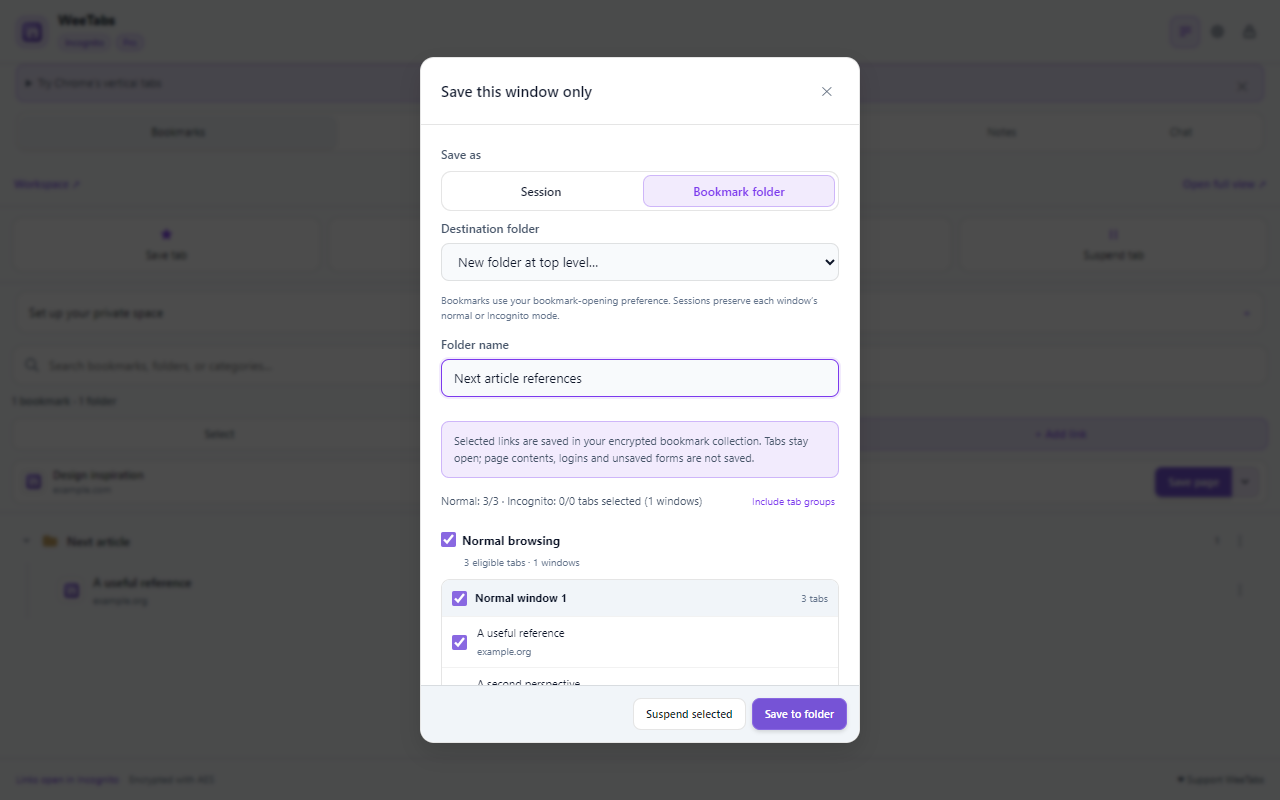
For example, save three research references into a folder called “Next article”. Save a separate working window as “Finish the draft” when its grouping matters. Neither choice is a live mirror of the tabs: later browsing changes do not update that saved copy.
Review the current window before saving
- Unlock WeeTabs and choose Save window in the side panel.
- Check the heading Save this window only. This captures the current window; it is different from the Save all windows action in History.
- Review the eligible web pages and deselect anything you do not need. Internal browser pages, unavailable tabs and unsupported addresses are excluded.
- Check the selected-tab count and the destination before confirming. Saving does not close or suspend your current tabs.
A useful habit is to remove temporary login pages, duplicate searches and completed tasks from the selection. You can keep the window open while checking the result in WeeTabs, rather than immediately closing everything and hoping the right pages were captured.
Save into a new or existing bookmark folder
Choose Bookmark folder, then use Destination folder. Select an existing folder, New folder at top level… and a name, or Top level for loose bookmarks. Confirm with Save to folder.
Existing entries in that destination are preserved. If the same page address is already directly in the chosen destination, it is skipped; an existing copy elsewhere in the vault does not prevent you filing the page here. This is destination-level duplicate checking, not a promise to remove every similar page across your library.
After saving, use Bookmarks to check the folder. The full view offers more space to move folders, create subfolders and sort by creation date. Use Select to move several saved links together. Importing or saving here does not alter Chrome’s own bookmark collection.
Keep a named session and restore selectively
Choose Session, enter a meaningful name and save the selected tabs. Find it later under History → Saved sessions. A name such as “Compare the shortlisted tools” is easier to recognise than a generic date alone.
Preview the saved group before restoring. Select the pages you need instead of opening an entire old workspace by habit. With paused opening enabled, restored pages begin as placeholders until selected, so every website does not load at once. Actual memory savings depend on the pages and what else is running.
Restoring a page does not bring back its scroll position, unsaved writing, Back/Forward history or account cookies. A website may ask you to sign in again. Read the tab restore guide for the difference between a stored page list and a website session.
Make a deliberate choice for Incognito pages
Enable Chrome’s Allow in Incognito permission before using private-window features. Review the separate consent when saving selected Incognito pages. A saved private session remains after the private window closes; locking WeeTabs hides it behind the vault password rather than deleting it.
A bookmark made from an Incognito page is still a saved address. Check your opening preference before using it later, especially when mixing normal and private research. Saving these links does not preserve authentication state or make browsing invisible to websites, employers or network operators.
Automatic checkpoints are another source of retained records. Normal and Incognito recording choices are separate from this manual Save window action. Review both under History if you do not want ongoing snapshots. The Incognito guide explains those controls.
Know the native option and protect your saved copy
If you only need ordinary Chrome bookmarks, Windows and Linux Chrome also provide Ctrl + Shift + D to save open tabs into a new bookmark folder. Those are Chrome bookmarks, not entries in your WeeTabs vault. See Google’s keyboard-shortcut documentation.
For a private saved collection, keep an encrypted recovery file outside the browser profile. Open Encrypted backup → Local offline backup → Save or Restore encrypted file. Check the download and keep its original vault password safe before removing a profile or uninstalling the extension. Local records alone cannot survive every device failure.