
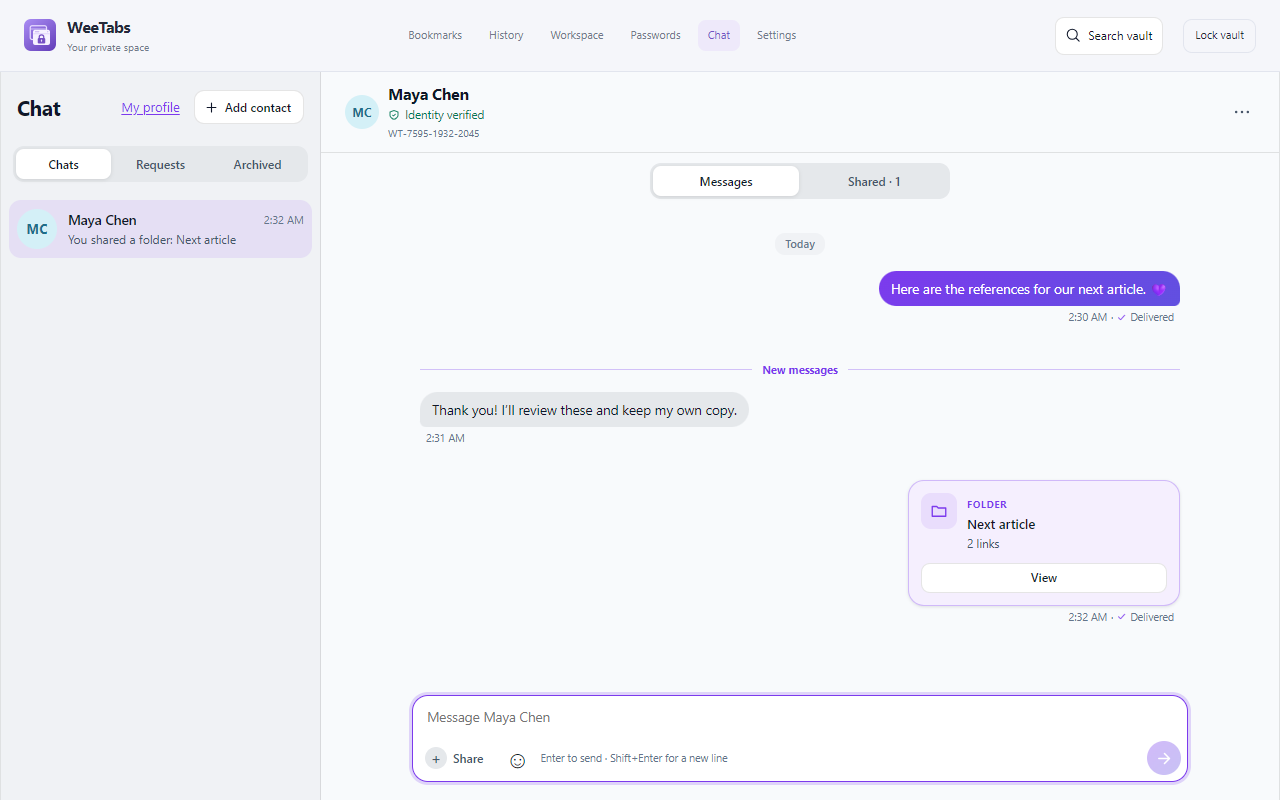
Use Chat for a deliberate conversation
A folder of links is easier to understand when it arrives with a short explanation. WeeTabs Chat lets you send a bookmark, a folder’s links or a Note alongside messages, so a contact can review the context and choose what to save.
A paid Pro member can start a direct-contact invitation. A verified free Chat member can accept and reply; sending in an active conversation requires at least one participant to have current paid Pro. The 21-day local trial does not include paid Chat initiation. This is direct, mutually approved contact, not a public directory or group workspace.
Start with someone you know and one small reference collection. Do not send a vault password, licence key or an entire sensitive library to test the feature. Chat enrolment and identity are separate from the password used to unlock your local vault.
Connect, invite and accept
- Open Chat and complete the applicable email verification or Pro connection flow. Use your own verification code, not a code supplied by someone else.
- Review My profile, your nickname and Your WeeTabs ID.
- As a paid Pro member, use Add contact for a known ID or handle, or create an invitation and send it through a channel you already trust.
- The other person uses the invitation and sends the request. Review the matching entry in Requests and accept only the intended contact.
A nickname alone is not proof of identity. Use Compare identity and compare through a separate trusted channel when the conversation matters. An unexpected key or identity change deserves a fresh check before you share private material.
Keep invitation details private until the intended person has connected. The recipient should not need your vault password or paid licence key to accept their own invitation.
Prepare a small folder or Note
Before sharing, open the source item and remove unrelated information. A research folder might include three references and a clear name. A Note can include the summary you wrote, a few checklist tasks and the pages that explain them.
Review every page address as well as its title. A URL can contain a document identifier, query or access token. Sharing a link does not grant access to a private website; your contact may still need their own permission or account. Do not include credentials inside URLs.
Keep a sensitive personal Note separate from a shareable summary. Editing your own source after sending does not change what the recipient already received. If you need to send an updated version, explain what changed rather than assuming it silently replaces the earlier copy.
Preview and send the snapshot
Open the accepted conversation and choose + Share. Select Bookmark, Folder or Note, choose the item and review the preview before sending. Add a short message explaining why the references matter.
A folder shares its page collection as a snapshot; it is not a live, editable connection to your folder hierarchy. A shared Note carries its supported writing, tasks and linked pages. Treat the preview as the record of what you are sending rather than a promise of collaborative rich-text editing.
Start with a modest item so your contact can review it comfortably in the side panel. Large collections can exceed sharing limits. Sending several focused collections is usually more useful than one giant bundle of unrelated links.
Review and save a separate copy
The recipient opens the shared card with View, checks the contents and chooses Save a copy if they want it in their own vault. The saved item belongs to their collection; they can organise it independently. A saved folder copy contains shared links, not a subscription to future changes.
Opening shared pages still visits their websites. Check unfamiliar domains before opening them, and choose the appropriate normal or Incognito browsing mode. Encryption for a Chat message does not make an attached website safe or anonymous.
For ongoing work, agree on a simple convention such as “send a new Note when the plan changes”. WeeTabs Chat is useful for exchanging context and copies; it is not a shared document editor, team task board or multi-person channel system.
Choose retention with realistic limits
Distinguish Clear local history, Clear for both and Clear on lock. Local clearing concerns your stored conversation. Clear for both requests clearing through the service and the other client; an offline recipient cannot react immediately. None can revoke screenshots, exports or items someone separately saved to their vault.
Chat history and connection keys are not included in the ordinary vault file backup or category sync. Connecting a replacement Chat profile can revoke the previous connection; it does not recover old private keys or messages. Do not treat Chat as the only archive for work you must retain.
Save your own important writing in Notes and choose an appropriate encrypted backup. Keep retention expectations clear with your contact before sharing. Private messaging protects a transport and storage workflow; it cannot control what a trusted recipient decides to keep.