
The fresh Incognito window problem
You open a new Incognito window, type a familiar website or topic into Google, and meet a CAPTCHA before reaching the page you wanted. You were not trying to discover something new—you were trying to get back to a site you already knew.
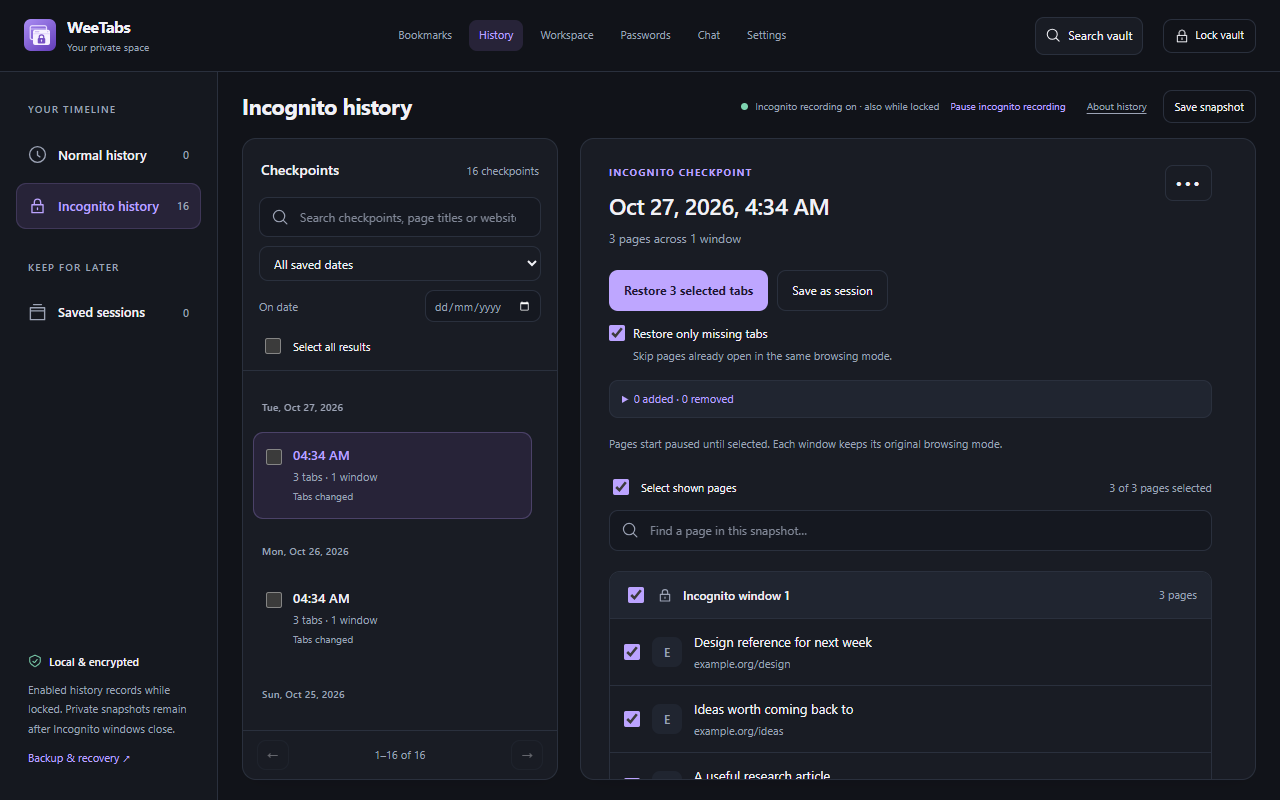
For that repeat visit, a saved destination is a shorter route. WeeTabs can retain your previously recorded Incognito tab list inside its password-protected vault. Find the actual site in that list and reopen it directly, without running the same Google Search again.
This is the useful distinction: skip an unnecessary search step, rather than solve its challenge through an extension. If the saved item points to a Google results page, it still opens Google. Choose the destination article, shop or reference page instead.
Why Google may ask for a CAPTCHA
Google explains that its unusual-traffic warning can appear when a network, including a VPN network, seems to send automated searches. Other people sharing a network can contribute. The warning does not by itself establish that opening Incognito caused it. See Google Search’s unusual-traffic guidance.
WeeTabs does not change your public IP address, network reputation or Google’s decisions. The benefit is narrower and practical: if you already have the destination saved, you do not need a new search to reach it. A fresh private window does not mean starting your research list from scratch.
Open your saved site in Incognito
- Open WeeTabs in the Chrome profile where you saved the pages and unlock your vault.
- Choose History → Incognito history. Search inside WeeTabs for a remembered page title or domain.
- Choose Preview & restore on a relevant checkpoint.
- Select the actual destination page, check its address and restore that page in its saved Incognito mode.
Chrome must permit WeeTabs to run in Incognito. Enable Allow in Incognito on the extension’s Details page if needed. When paused bulk opening is enabled, select the restored tab to load its site; the paused placeholder is not a search or CAPTCHA screen.
For example, select the article’s own address from a research checkpoint, rather than the Google results page you originally used to find it. The destination may redirect, require an account or ask for a challenge of its own. Saved history is not a way around those requirements.
Keep repeat destinations easy to find
Automatic history is useful when you remember roughly when you visited. For a regular set, use Keep snapshot to retain a named session under History → Saved sessions. Preview it and restore only the pages you need. A clear name makes the next fresh-window visit simpler.
You can also save useful addresses into a private bookmark folder. Check your bookmark-opening preference so those links open in the intended normal or Incognito mode. A normal Chrome bookmark can also open a known address directly; WeeTabs adds a separate saved collection behind your vault password.
Recording needed to be enabled before the pages disappeared. Normal and Incognito recording are selected by default during WeeTabs setup, with confirmation required; Chrome’s Incognito permission is separate. If the page was never captured, find and save it for next time. See how to restore previously saved Incognito history for an empty-timeline checklist.
If the site still shows a challenge
First check which address you opened. A saved search URL returns to the search service; a site’s own URL goes to that site, subject to any redirects. Neither a history entry nor a bookmark guarantees a challenge-free visit.
If Google itself shows its unusual-traffic warning and you need to use Search, follow Google’s displayed challenge. For recurring problems, its official help recommends investigating automated traffic or malware and contacting the relevant network administrator, VPN provider or internet provider. Do not give an unfamiliar CAPTCHA-solving extension access to your saved vault.
Restoring a tab does not restore authentication cookies or a completed challenge from an earlier private session. Chrome ends an Incognito session when all its private windows close. Its Incognito help explains that session boundary. WeeTabs password help can assist with supported sign-in fields, but does not submit forms or recreate a signed-in session.
Choose what you want to retain
Incognito history saved in WeeTabs is a deliberate persistent record. Closing the private window does not erase it. Enabled recording continues while the vault is locked; use the recording switch to stop new captures and delete saved items you no longer want. Existing exported or cloud copies have their own retention.
Free history keeps up to 7 days. Pro and the 21-day local trial offer more checkpoints with 7, 30 or 90-day choices, subject to space. Recording continues under Free limits after expiry. Named sessions suit important groups you want to keep separately from automatic pruning.
The vault protects WeeTabs’ saved collection, not websites already open, Chrome’s original history or network visibility. For deliberate setup and recovery copies, read saving Incognito sessions privately and backup versus sync. Official sources and the product workflow were reviewed on 28 October 2026.