
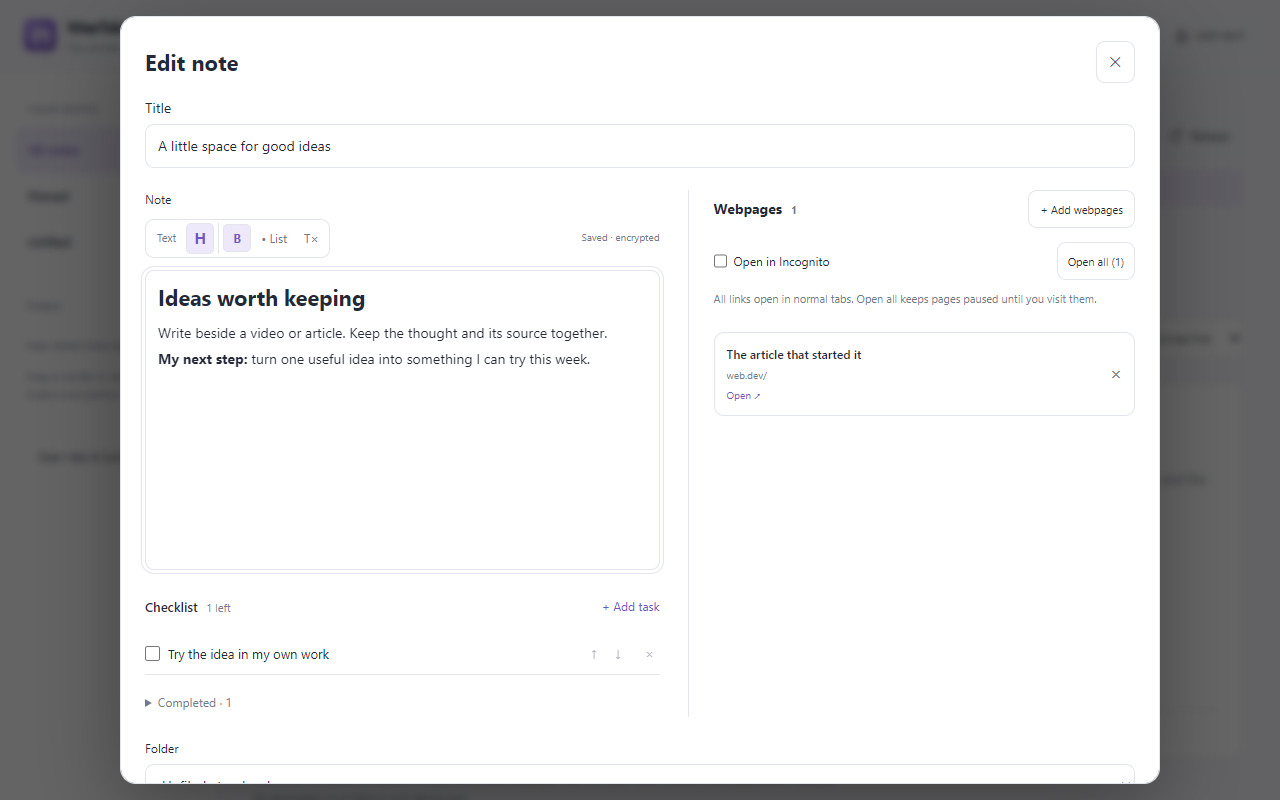
Keep the page and your writing together
Switching repeatedly between a video and a separate writing app makes it easy to lose the point you wanted to remember. Open WeeTabs in Chrome’s side panel and choose Notes to write beside the page. The same approach works for an article, a course or a reference document.
Start with one note for the question you are exploring. A title such as “Ideas to try from the design talk” is more useful later than the video title alone. Record your interpretation and the next question, rather than trying to copy every sentence. Pause the video whenever you need time to think.
Private Notes are a Pro feature, included in the 21-day local trial. Local writing needs no cloud account. After the trial or Pro expires, existing notes remain readable, exportable and deletable while the vault is unlocked; creating or editing them requires Pro.
Write a short note and save it
- Unlock the vault, open Notes and create a note.
- Add a clear title and a few sentences in the editor. Use a heading to separate the main idea from your own response.
- Use bold or a list only where it helps scanning. Short paragraphs are usually easier to revisit than one long block.
- Choose Save note before closing the editor. Check that your saved note appears in the list.
Typing is not a promise that a cloud copy has already been created. Saving the note locally, backing it up and syncing it are separate actions and settings. If you need to leave while writing, save first. Reopen the note once to confirm the content you expected is there.
WeeTabs does not listen to the video, create a transcript or infer timestamps. If a particular moment matters, write its time yourself and add the source link. This keeps the distinction between your notes and the original author’s material clear.
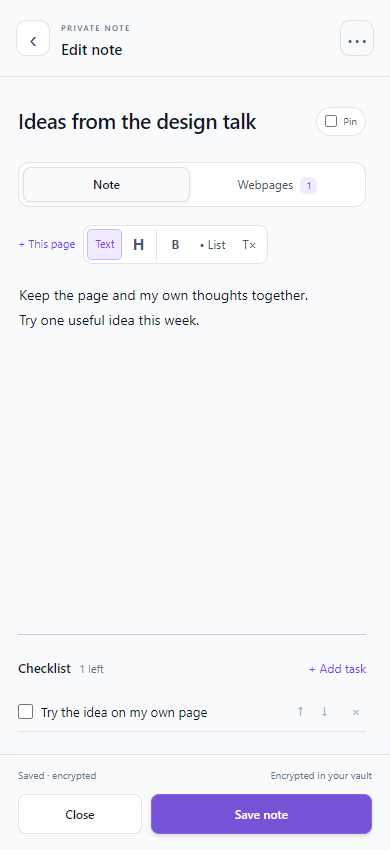
Attach the source instead of losing it
Add the current webpage or choose references from your bookmarks, history and saved sessions. You can bring in the links from a bookmark folder or saved session instead of attaching them one at a time. Review what you added so the note remains focused.
For a research note, one primary source and two supporting pages may be enough. Capturing selected text with its source can preserve a short passage you want to discuss; it does not capture the whole website, its media or future changes. A linked article may later move, require sign-in or disappear.
Check the note’s Links open in Incognito or normal tab choice. Incognito opening needs Chrome’s extension permission and does not restore an existing website login. A link can also contain a private document identifier or other sensitive information, even when its title looks harmless.
Add a small checklist without turning it into a project
Use an optional checklist for actions that follow directly from the note: revisit one section, compare a reference or test an idea. Keep the writing as context and the checklist as the next steps. Ticking a task records progress inside the note.
For example, after a tutorial, write “Try the keyboard navigation pattern on my own page”, then add a second task to record what worked. This is more useful than making a long list of vague intentions. A note checklist is not a team task assignment, calendar reminder or automated scheduling system.
Pin a note you are actively using. Archive it when the work is finished, and search when you need it again. The full Notes library offers folders and more room to organise a growing collection; the side panel keeps editing close to the page.
Understand what the vault protects
Your saved writing, checklist and attached page list are encrypted in the WeeTabs vault. Locking the vault hides its saved contents from the extension interface. It does not hide the video still playing, remove Chrome’s own browsing history or lock the computer.
Use an operating-system screen lock when you step away. Keep the vault password outside this browser profile: a forgotten password cannot be recovered by sending a reset email. Sharing a computer while the vault is unlocked is different from keeping a saved collection encrypted at rest.
Notes cloud backup and Notes device sync start off. Enable each category deliberately if you want those extra copies. Enabling bookmark backup does not automatically protect writing stored only in Notes.